Remote · scan & go
Scan & go. Your phone is the remote.
A clicker for your guest speaker, controls for a volunteer or lyrics for the band. Scan Presenter’s QR code and join in your browser. No app or account needed.
Use the QR code or connection details from Presenter.
New to ProWeave? Start with Presenter.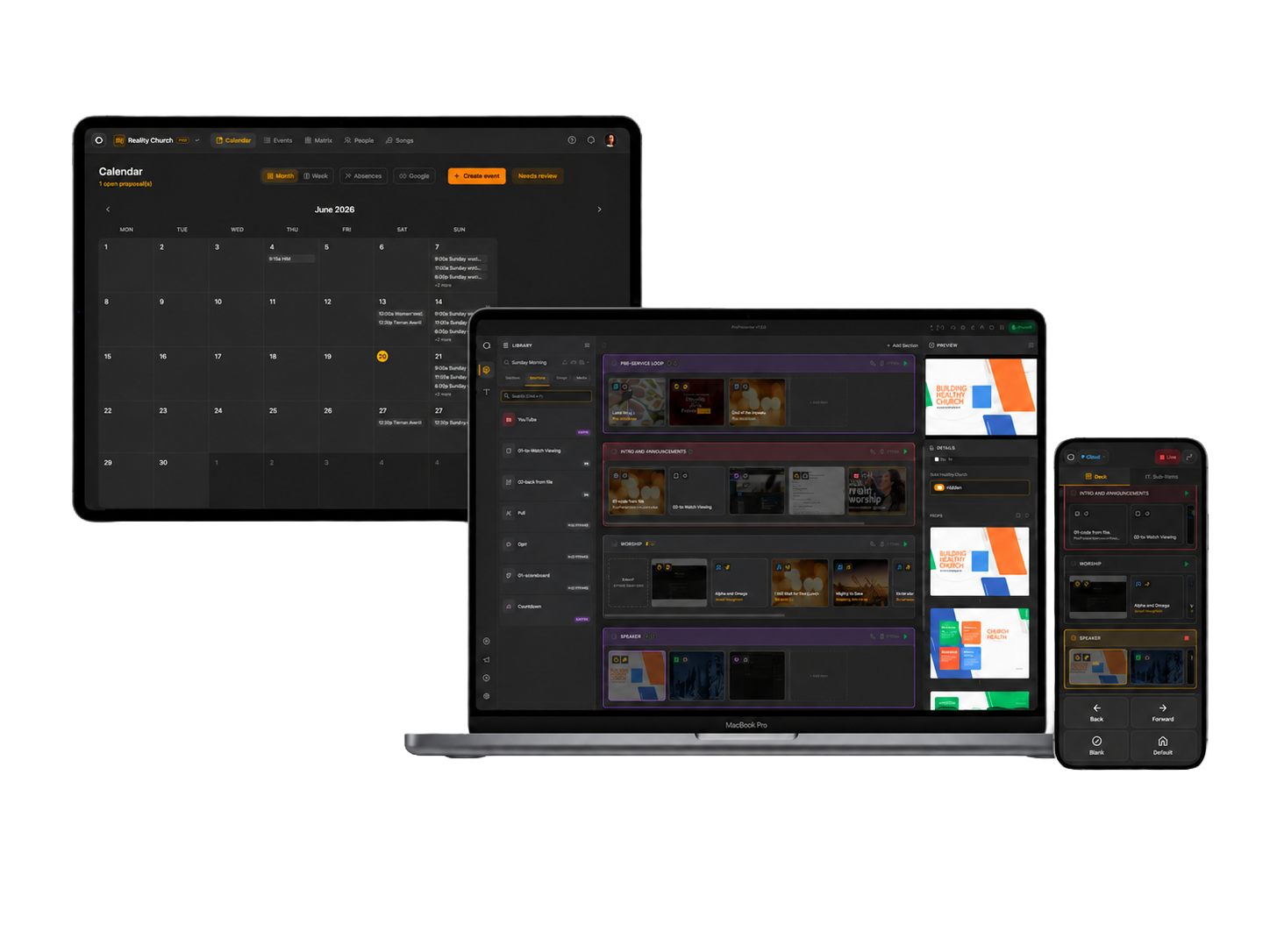
The right controls for each person.
Let the speaker set the pace.
Next slide, previous slide or a blank screen. Your guest controls the presentation you have prepared in Presenter.
For a sermon, talk or guest presentation. Choose simple controls in Presenter.
Worship Assist
Your songs on every music stand.
Worship Assist brings Presenter’s setlist, lyrics and chords to your musicians. Each with their own screen, all on the same song.
Explore Worship Assist“Let’s sing one more.”
Find the song on your phone, open it for the band and suggest it to Presenter. The musicians are ready; the AV volunteer receives your request.
The operator accepts the request in Presenter, unless automatic acceptance is enabled.
Ready in three steps.
- 1
Choose the access
Open Mobile control in Presenter. Choose simple or full controls, Viewer, or Worship Assist.
- 2
Share the QR code
Your guest or volunteer scans it with their phone camera.
- 3
Get on with the service
The right controls or view open in their browser.
Do I need to install an app?
No. Scan the QR code from Presenter and open Remote in your phone or tablet browser. Presenter must be running and remains in control of the session.
Does it work without internet?
On the same local network, Remote works without internet. Connecting through the cloud requires internet and an active Team subscription.
Can everyone control the projector?
You choose the role when pairing. A controller can operate the presentation; a viewer follows it. Worship Assist gives musicians their own lyrics and chord view.
Your next guest already has the clicker.
Set up Presenter on the presentation computer. Their phone takes care of the rest.